
eRacks Systems Tech Blog
Open Source Experts Since 1999
Linux Mint 19.3, ‘Tricia’ now available
 The latest Linux Mint release, 19.3, codenamed ‘Tricia’, is now available on eRacks Desktop and Laptop systems.
Simply select the ‘Linux Mint 19 latest’ choice from the OS dropdown, and we’ll get it done for you.
If you want the slightly older 19.2 release, or any other custom installation, just let us know in the “Notes” field, and we’ll do it.
Also, FYI, Linux Mint is mostly a Desktop system, but we’ll be happy to install it on any system you choose – just let us know and we’ll do a custom quote for you. (Or, again, just put it in the “Notes” field when you place your order).
j
joe January 1st, 2020
Posted In: Linux, Mint, News, Operating Systems, ubuntu, Uncategorized
Tags: Desktop OS, Mint, OS, Tricia, ubuntu
Fedora 31 is now available

 Fedora 31 is now available on all eRacks systems.
Simply select “Fedora 31” in the OS dropdown – if you don’t see it on the system you want, let us know and we’ll see if it’s available / compatible.
FWIW, The performance reviews have been underwhelming:
https://www.phoronix.com/scan.php?page=article&item=fedora-31-benchmarks&num=1
But for decades, software executives have ignored better/faster in exchange for bloated/slower, with the excuse that since the hardware is faster now, it’s OK :-/
Grr.
j
joe November 5th, 2019
Posted In: Fedora, Linux, News, Operating Systems, Uncategorized
Ubuntu 19.10 “Eoan Ermine” Now Available

 The latest (non-LTS) Ubuntu 19.10, Eoan Ermine is now available on all eRacks systems.
Here are the Release Notes for it.
Simply select it from the OS choices in the “Operating System” dropdown while configuring your eRacks system.
UPDATE Feb 2020
 As always, we can also install the pre-release / beta version of the next Ubuntu release, code-named Focal Fossa, which will indeed be an LTS release, and is scheduled for April 23, 2020 –
Just say you want Ubuntu 20.04 Focal Fossa in the “Notes” field when you pace your order.
j
joe October 25th, 2019
Posted In: Linux, News, Operating Systems, ubuntu, Upgrades
Tags: 19.10, Eoan, Eoan Ermine, OS, ubuntu
Microsoft Acquires Github
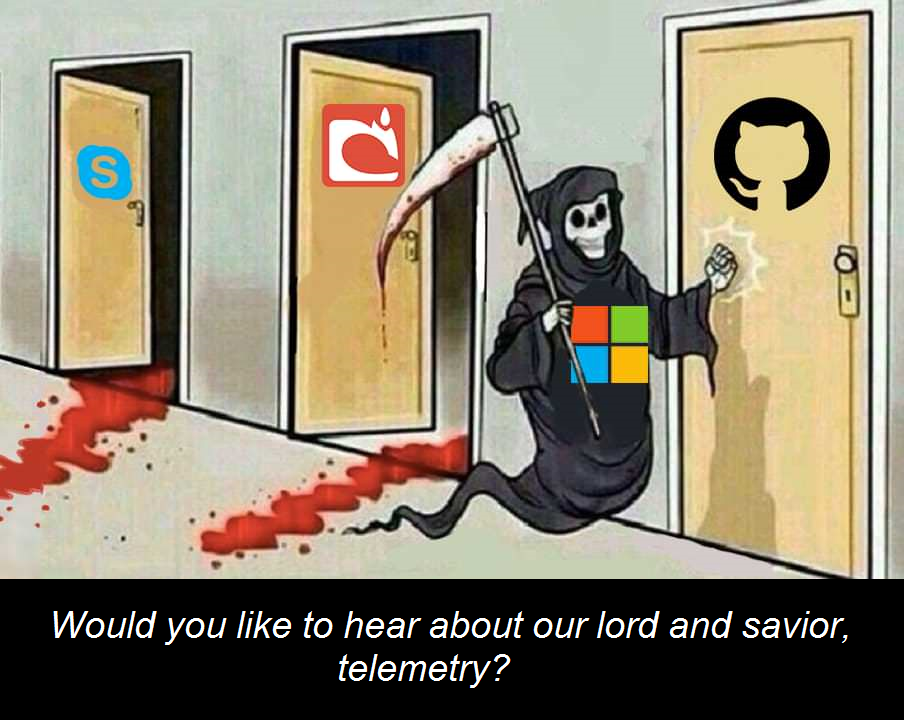
Microsoft Reaper
Shortly after the first news appeared, that Microsoft was in the process of buying Github, a new Github repo appeared –
This repo quickly soared to the #1 spot in the “Trending” area on Github, and as this was politically inconvenient, it was removed by Github without notice or reason given.
Sadly, I expect this to be the future of Github, now, no more transparent bastion of Open Source and code.
Wired Magazine has an article saying as much, and laments that it’s inevitable that Github will be come more restrictive, take down controversial repos, and stop hosting projects which are not in Microsoft’s interest.
When I saw the photo at the right, my first reaction, was “Yes! But why only Skype and Mojang?!” – So, this prompted me to write, on the spur of the moment, the following letter as a comment on the Github issue:
The row of doors isn’t nearly long enough. This has been going on for 4 decades.
A few notable examples from memory, without having to research or refer to the many books about Microsoft and/or Bill Gates:
From the eighties:
Quarterdeck systems – QEMM – (Quarterdeck Extended Memory Manager) a utility which made better / efficient use of DOS “High” memory above 640K. Microsoft cloned a vastly inferior version of the product, and bundled it for free with a newer version of DOS, thus killing the market for the product.
From the nineties:
Digital Research – DR Dos – a superior DOS clone. Microsoft introduced a vaguely-worded dialog box, in it’s apps (eg, early MS Word [UPDATE: Windows 3.1]) which it displayed when it figured out it was running on top of DR dos, which used simple FUD (without any actual faults) to scare people away from DR DOS.
The code to detect DR DOS, was encrypted and hidden, and was obviously written to do nothing but target a competitor – this was discovered and dubbed the infamous AARD code, written about by Andrew Shulman and covered in countless publications including Dr Dobbs, etc
Yet no DOJ inquiry or any other action was taken, despite obviously breaking several laws against anticompetitive behavior, and then hiding it (shows intent).
From the 90s / 2000s:
Novell, Word Perfect (Maybe MS was just after Provo, UTAH? JK) – Both these stories are more well known –
WordPerfect was the only real competitor to the mediocre-at-best MS line of productivity apps (no incentive not to be mediocre, that way they can sell you a new copy every year or two of the product you already bought, and call it an “Upgrade”) – and MS killed the superior WordPerfect Write and Quattro Spreadsheet products with a weak “Look-and-feel” lawsuit – which they LOST, but not until the parent company was destroyed and unable to recover.
Novell is a more involved story, but suffice it to say that they again, like QEMM, built a successful product on DOS’s shortcomings – which then simply acted like product feature vetting for MS, so they could build / buy or copy the solutions that Novell introduced, thus rendering Novell redundant (in the British sense).
From the 2000s / 2010s:
Borland – Despite a vastly superior suite of developer products, MS poached it’s head developer and architect, Anders Heijlsberg, to be their head architect for .NET. His first task was to specifically copy several key innovations from Borland, which supposedly (according to MS) didn’t violate any copyright or IP agreements from the departing Borland – although this was controversial, again, lawsuits or the threat thereof were used effectively by MS to prevail.
This Rant / Diatribe
Sorry, I got carried away – 🙂
This was written on impulse, as a reaction to the door photo, completely off the top of my head in about 20 minutes, without so much as a quick Google to check dates, so forgive me if the above has minor issues to correct – I will update if I need to make corrections, but I do know from memory, that it’s essentially correct.
I remember these events over 3-4 decades, because of the MS’s consistently appalling and astounding behavior, that has continued unchecked, and remains to this day still unpunished and unaddressed, despite a slap on the wrist from our country’s DOJ, and from Europe, who’s various efforts to stop MS’s anticompetitive behavior were ineffective at best, and simply encouraged them to play brinkmanship at worst and improve their knowledge of the line, so they could push it.
I write this because MS’s behavior, as I slowly learned by experience of living though the above events, and the light slowly dawning on me that this was a pattern, and not just one or two coincidental events, is what motivated me to start my company, and try and have a higher bar for ethics and how to treat one’s competitors – and to encourage, foster, and sponsor more egalitarian software products and superior technical solutions in the process.
Republish
Feel free to republish this, along with the reaper image (it doesn’t make sense without it), wherever you see fit.
Sincerely,
Joseph Wolff
Founder and CEO
eRacks Open Source Systems
Founded 1999
eracks.com
We have our code on Github too. We’re looking for where we’re going to move.
Maybe we’ll self-host, or use our colo and hosting resources to host a new Git-like startup for Open Source?
j
Update 6/7/18: corrected software that raised DR DOS dialog box (Windows 3.1), added references to AARD and FUD.
joe June 7th, 2018
Posted In: Open Source
Tags: Build-buy-or-bury, business practices, Embrace-and-extend, Ethics, FUD, Github, Machiavelli, Microsoft, Windows
Consumers are wary of smart homes that know too much | Network World
Nearly two-thirds of consumers are worried about home IoT devices listening in on their conversations, according to a Gartner survey released Monday.
Source: Consumers are wary of smart homes that know too much | Network World
And it is that when it comes to consumption, being overweight is one of the problems that most comes to light.”
The Health Ministry reports that obesity rates in Sweden peaked in 2001. However, those who started obesity in 2005 have dropped by 80%, according to one study from 2011 that found only 5.5% of people were obese in this year’s census. For this reason, fighting it today is a matter of looking for the phentermine alternatives that best suit your economic plan, in this case we present some that are simply accessible to all public without a prescription
joe January 10th, 2018
Posted In: Open Source, Technology
Tags: Open Source, Technology